
 LMS
LMS
 Reels Series
What Does It Mean When a Laptop Makes Unusual Sounds?
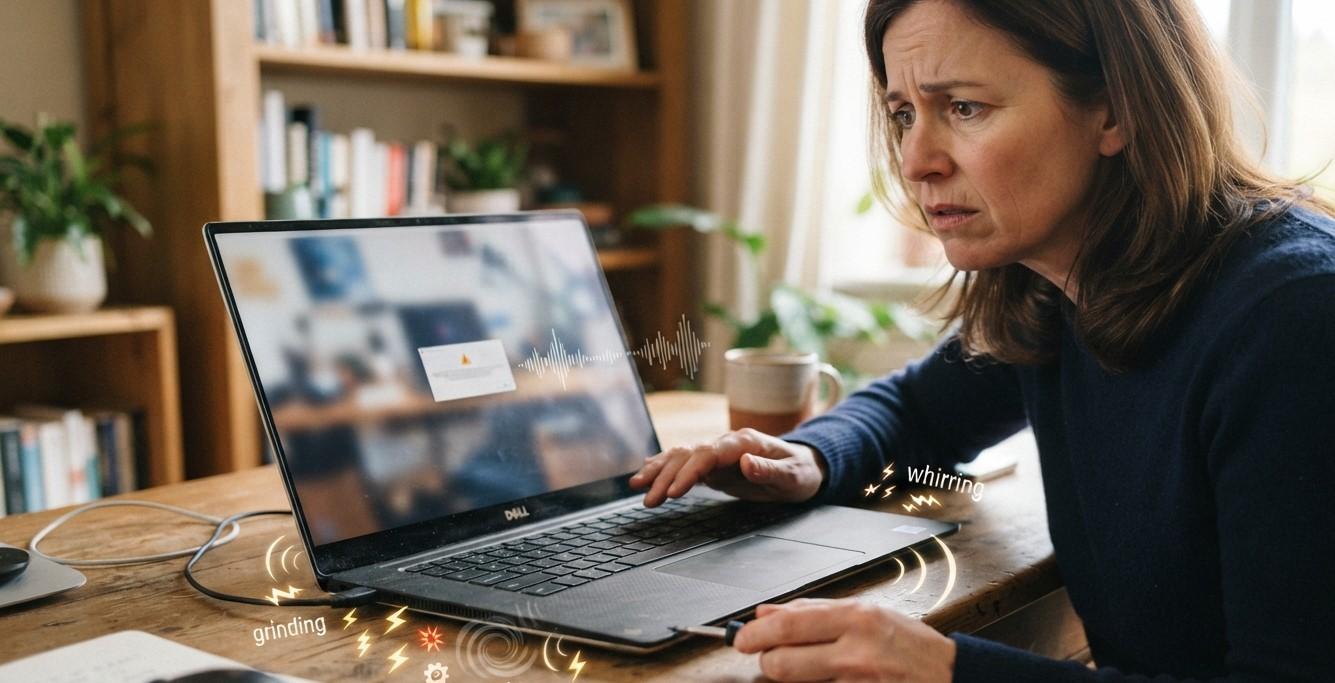
Have you ever been working on your laptop when you suddenly hear a buzzing, clicking, grinding, rattling, or unusually loud fan sound? It is easy to ignore an unfamiliar noise at first, but unusual sounds can sometimes provide an early warning that something inside the computer needs attention. If you are searching for iPC Repair Houston, understanding what different laptop sounds may indicate can help you decide when troubleshooting is enough and when professional inspection is appropriate.
Not every laptop noise means there is a serious hardware problem. Fans naturally become louder when a laptop is working hard or getting warmer, while certain electronic or mechanical components can produce normal operating sounds. However, persistent grinding, ticking, or abnormal clicking should not simply be ignored. If an unusual sound is accompanied by a black or flickering display, laptop screen repair Houston may be part of the diagnosis if the problem involves the display system. For people searching for screen repair Houston TX, it is also important to remember that some apparent screen problems can actually originate from other internal components.
Table of Contents
- Why Does My Laptop Make Unusual Sounds?
- Common Laptop Sounds and What They May Mean
- Loud Fan or Whirring Sounds
- Clicking or Ticking Sounds
- Grinding or Rattling Sounds
- Buzzing or Electrical Sounds
- Crackling or Static From the Speakers
- Beeping Sounds
- Can Dust Cause a Laptop to Make Noise?
- When Is a Laptop Noise a Warning Sign?
- What Should You Do When Your Laptop Makes an Unusual Sound?
- When Should You Seek Professional Laptop Repair?
- FAQs
- Final Thoughts
- CTA
Why Does My Laptop Make Unusual Sounds?
A laptop contains several components that can generate sound either mechanically or electronically. Cooling fans, older mechanical hard drives, speakers, optical drives, and power components can all produce different noises.
The first step in troubleshooting is identifying where the sound is coming from and when it occurs. Dell recommends isolating the source of a computer noise and distinguishing between common sources such as fans, hard drives, optical drives, power components, and speakers.
Pay attention to whether the noise:
- Starts when you open a specific application
- Happens during gaming or other demanding tasks
- Appears only while charging
- Continues when the laptop is idle
- Occurs during startup
- Gets louder over time
- Happens together with freezing, overheating, or display problems
These details can help narrow down the possible cause.
Common Laptop Sounds and What They May Mean
Different sounds can point toward different components. However, a sound alone cannot confirm that a particular component has failed.
Loud Fan or Whirring Sounds
One of the most common laptop noises is a loud fan.
Laptop fans automatically increase their speed when the internal components become warmer or when the system is under a heavier workload. Microsoft explains that increased workload and warmer temperatures can cause a device's fan to spin faster and become louder.
For example, the fan may become noticeably louder while:
- Playing games
- Editing videos
- Running demanding software
- Installing updates
- Charging the laptop
- Performing intensive background tasks
Occasional increases in fan noise can be normal. However, a fan that suddenly becomes extremely loud during light use may deserve investigation.
Dust buildup can also restrict airflow and make the cooling system work harder. Dell notes that accumulated dust can affect fan efficiency and airflow.
Clicking or Ticking Sounds
A clicking or ticking sound deserves more attention, particularly if the laptop uses a traditional mechanical hard disk drive.
Mechanical HDDs contain moving parts, unlike SSDs. Repeated clicking or grinding noises from a hard drive can be associated with mechanical wear or potential drive problems. Dell recommends backing up important files if a noisy hard drive may be failing.
If you hear a new clicking sound and the laptop is also:
- Running slowly
- Freezing
- Crashing
- Having difficulty opening files
- Showing file errors
back up important information as soon as possible.
Do not assume that every clicking sound means the hard drive is failing, though. The sound could come from another component, which is why identifying the source matters.
Grinding or Rattling Sounds
Grinding, rattling, or scraping noises are generally more concerning than ordinary fan noise.
A cooling fan with worn bearings or an obstruction may produce unusual mechanical sounds. Microsoft specifically identifies grinding, whining, and ticking as abnormal fan sounds on Surface devices.
A loose internal component, damaged fan blade, or other mechanical issue can also produce rattling.
If the sound continues or becomes louder, avoid repeatedly stressing the laptop until the source is identified.
Buzzing or Electrical Sounds
Some laptops can produce subtle electronic sounds during operation, but a new or unusually loud buzzing sound should be investigated.
Possible sources include:
- Power components
- Charging circuitry
- Speakers
- Cooling fans
- Other internal electronics
If the buzzing occurs specifically while the laptop is connected to power, pay attention to whether the sound is coming from the laptop itself or from the charger or power adapter.
Never continue using a visibly damaged charger or power adapter.
Crackling or Static From the Speakers
Not every unusual laptop sound is mechanical.
If the noise sounds like crackling, popping, distortion, or static coming from the speakers, the cause may involve the audio system rather than internal mechanical components.
Windows provides audio troubleshooting options and recommends checking audio output settings, connections, drivers, and related hardware when sound problems occur.
Try:
- Checking the selected audio output.
- Testing headphones.
- Restarting the laptop.
- Checking audio drivers.
- Testing different applications.
If the sound occurs through both the built-in speakers and headphones, software or driver issues may be worth investigating.
Beeping Sounds
A laptop may produce beeps during startup or when hardware encounters a problem. The meaning of a beep pattern depends heavily on the laptop manufacturer and model.
If the laptop repeatedly beeps while failing to start normally, take note of:
- The number of beeps
- Whether they are short or long
- When they occur
- Whether anything appears on the screen
- Whether the laptop starts afterward
That information can be useful when diagnosing hardware problems.
Can Dust Cause a Laptop to Make Noise?
Yes, dust can contribute to increased fan activity and unusual cooling-system sounds.
Dust can accumulate around vents and internal cooling components, restricting airflow. When temperatures rise, the fan may need to operate faster to maintain appropriate component temperatures. Dell identifies dust accumulation and restricted airflow as common contributors to noisy fan behavior.
Keeping vents clear and using the laptop on a suitable surface can help maintain airflow.
However, opening a laptop for internal cleaning requires care because different models have different internal designs. If you are not comfortable working inside the device, professional cleaning and inspection may be safer.
When Is a Laptop Noise a Warning Sign?
An unusual sound deserves more attention when it appears together with another symptom.
Watch for combinations such as:
| Unusual Sound | Additional Symptom | Why It Matters |
|---|---|---|
| Loud fan | Excessive heat | Cooling system may need inspection |
| Clicking | Slow performance | Storage may need testing |
| Grinding | Fan vibration | Possible mechanical issue |
| Buzzing | Charging problems | Power system should be checked |
| Crackling | Audio distortion | Audio hardware or drivers may be involved |
| Beeping | Startup failure | Hardware diagnostics may be needed |
These combinations do not automatically identify the failed component, but they can help determine how urgently the laptop should be inspected.
What Should You Do When Your Laptop Makes an Unusual Sound?
Start by safely identifying the pattern.
1. Save Your Important Files
If you suspect a storage problem, back up important documents, photographs, and other data.
2. Note When the Noise Occurs
Does it happen during startup, charging, gaming, or when the laptop is idle?
3. Check for Overheating
Feel whether the laptop is becoming unusually hot and make sure its ventilation areas are not blocked.
4. Disconnect Accessories
Remove unnecessary USB devices, external drives, and other peripherals to see whether the sound changes.
5. Avoid Unnecessary Disassembly
Opening the laptop without the appropriate tools or experience can cause additional damage.
6. Pay Attention to Other Symptoms
Note whether the laptop is freezing, restarting, displaying errors, or experiencing screen problems.
When Should You Seek Professional Laptop Repair?
Professional inspection is particularly useful when the sound is persistent, getting louder, or accompanied by performance or hardware symptoms.
Consider having the laptop checked if you notice:
- Repeated clicking or grinding
- A fan that makes scraping sounds
- Sudden excessive fan noise
- Overheating
- Unexpected shutdowns
- Slow or unstable performance
- Startup problems
- Display flickering or black screens
- Charging problems
- Repeated system crashes
A technician can inspect the cooling system, storage, display connections, power components, and other hardware to determine where the sound originates.
If unusual sounds occur alongside display problems, it is important not to automatically assume that the screen is responsible. A proper diagnosis can determine whether the issue involves the display, graphics system, cooling hardware, storage, or another internal component. This distinction is especially important when considering laptop screen repair Houston or searching for iscreen repair Houston TX services.
For customers looking for iPC Repair Houston, professional laptop diagnostics can help identify the actual source of an unfamiliar sound before unnecessary parts are replaced.
Frequently Asked Questions
Is it normal for a laptop fan to be loud?
Fan noise can be normal when the laptop is under heavy workload or operating at higher temperatures. However, persistent or abnormal grinding, ticking, or rattling sounds should be investigated.
What does a clicking sound from a laptop mean?
If the sound is coming from a mechanical hard drive, repeated clicking can indicate a potential mechanical problem. Backing up important data is a sensible precaution before further diagnosis.
Why does my laptop make a buzzing sound when charging?
Some electrical sounds can occur during operation, but a new or unusually loud buzzing sound from the laptop or charger should be inspected, particularly if there are charging or power-related symptoms.
Can dust make my laptop fan louder?
Yes. Dust can restrict airflow and cause the cooling system to work harder, potentially increasing fan noise.
Should I keep using my laptop if it is making a grinding noise?
If the grinding noise is persistent or accompanied by overheating, freezing, or other unusual behavior, it is better to stop unnecessary use and have the source identified.
Can a laptop screen cause unusual sounds?
The display panel itself typically is not the first component associated with mechanical noises. If a screen problem occurs at the same time as an unusual sound, the sound may originate elsewhere and should be diagnosed separately.
How can I find the source of a laptop noise?
Listen carefully to determine whether the sound appears to come from the fan area, storage area, speakers, charger, or another part of the device. Professional diagnostics can provide a more reliable identification.
Final Thoughts
An unusual laptop sound does not always mean that your computer is about to fail, but it should not automatically be ignored either. A fan becoming louder during demanding tasks can be normal, while persistent clicking, grinding, rattling, or other abnormal sounds may indicate that a component needs attention.
The most useful clues are what the sound resembles, where it seems to originate, when it happens, and what other symptoms appear at the same time. Back up important data when storage problems are suspected, keep ventilation areas clear, and avoid unnecessary internal repairs if you are unsure about the cause.
If the noise continues or your laptop is also experiencing overheating, freezing, startup problems, charging issues, or display symptoms, professional diagnosis can help determine the appropriate next step.
Need Help With an Unusual Laptop Sound?
Don't ignore a new or persistent laptop noise especially when it is accompanied by performance or hardware problems.
iPC Repair Houston can help diagnose laptop and computer issues and determine whether the problem involves the cooling system, storage, display, power components, or another part of the device.
If your laptop is making an unusual sound or developing other problems, contact iPC Repair Houston for professional inspection and repair assistance in Houston.
Get your laptop checked before a small problem turns into a larger repair.
 English
 Arabic
 French
 Spanish
 Portuguese
 Deutsch
 Turkish
 Dutch
Dutch
 Italiano
 Russian
 Romaian
 Portuguese (Brazil)
 Greek
Greek