
 LMS
LMS
 Reels Series
Choosing the Right Workstation for CPU-Based KeyShot Rendering
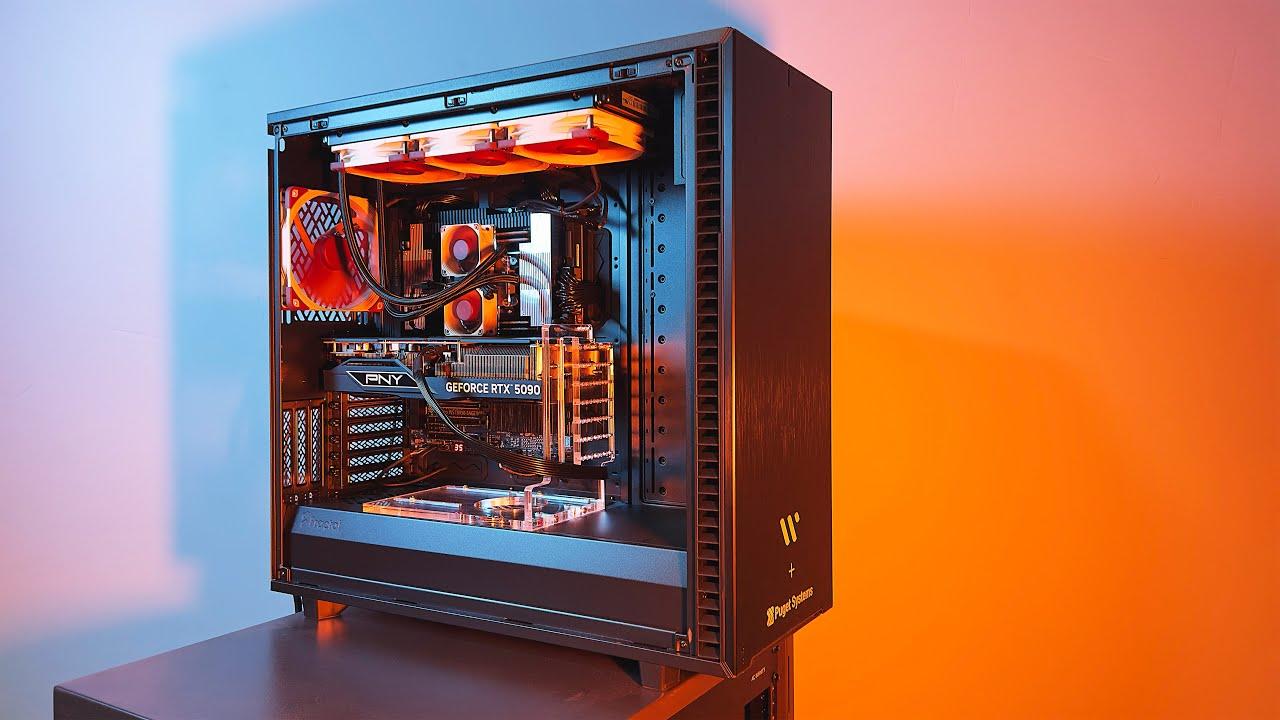
Producing lifelike product images requires precision, patience, and hardware that can keep up with demanding creative work. From intricate surface textures to realistic lighting, every detail contributes to the final visual quality. When rendering becomes part of a daily workflow, slow processing can affect deadlines and limit creative experimentation. Choosing the right workstation helps designers achieve consistent results while maintaining an efficient production process.
Understanding Rendering Workloads
A KeyShot CPU rendering workstation should match your scene complexity, output quality, and workload. CPU rendering relies on processor resources to calculate lighting, reflections, and material interactions. Detailed models and high-resolution images require more processing power. Choosing suitable hardware helps maintain consistent performance.
CPU rendering depends primarily on the processor, making core count and clock speeds important considerations. Memory capacity and cooling also affect performance. A balanced system helps designers refine materials and lighting. This supports smoother workflows and reliable results.
Selecting Processor Performance
The processor is the foundation of CPU-based rendering. Modern multicore CPUs handle numerous calculations simultaneously, helping reduce rendering times. Architecture, clock speeds, and thermal limits also influence performance. Choosing a suitable processor helps manage demanding scenes efficiently.
Compare processors using independent benchmarks that reflect actual rendering workloads. Intel Core Ultra processors may suit professionals balancing visualization with everyday productivity. AMD processors can also deliver competitive results. Choose a model that meets your performance needs and budget.
Evaluating Memory Requirements
System memory helps KeyShot manage detailed models, complex assemblies, and high-resolution textures. Insufficient RAM can slow applications or complicate large projects. Professional workloads often require additional capacity. Running multiple design applications can increase memory demands.
For many users, 32 GB provides a reasonable starting point, while 64 GB or more may suit complex scenes. Consider your project sizes and software requirements before purchasing. Upgradeable memory also simplifies future expansion. This helps your workstation adapt to growing workloads.
Balancing Graphics Hardware
Although the processor handles CPU rendering calculations, graphics hardware affects viewport responsiveness and model navigation. A capable graphics card supports smoother interaction with complex models. However, an expensive GPU may offer limited benefits when CPU rendering is your primary focus.
Consider these factors when comparing graphics hardware:
-
Display support: Check compatibility with your monitor resolution.
-
Viewport performance: Match graphics capabilities to model complexity.
-
Memory capacity: Consider detailed geometry and textures.
-
Compatibility: Verify support for your operating system and software.
-
Upgrade options: Allow room for future improvements.
A balanced configuration prevents unnecessary spending while maintaining a comfortable design experience. This leaves more budget for processor and memory resources. These components directly influence CPU rendering performance.
Choosing Reliable Storage
Fast storage keeps a rendering workstation responsive during production. NVMe solid-state drives accelerate project loading, asset access, and file transfers. However, storage speed generally has limited impact on rendering calculations. Its main benefit is improving everyday workflow efficiency.
Capacity matters when managing projects, textures, and archived renders. Use an SSD for applications and active files, with additional storage for backups. Organized folders simplify asset management. Regular backups help protect valuable creative work.
Maintaining Cooling Efficiency
CPU rendering places sustained demands on the processor during complex tasks. Effective cooling helps prevent excessive temperatures that can reduce operating speeds. Appropriate cooling hardware and good airflow support consistent performance. This is particularly important during extended rendering sessions.
Cooling requirements depend on processor power consumption and system design. Choose a workstation that handles demanding workloads without excessive noise. Regular cleaning helps maintain airflow. Monitoring temperatures also supports long-term reliability.
Planning Future Upgrades
A workstation should accommodate current projects and future growth. Larger scenes and higher resolutions can expose hardware limitations. A KeyShot Intel Ultra workstation may suit professionals when its processor performance, memory support, and expansion options match their needs.
Long-term value also depends on component quality and warranty coverage. Check memory capacity, motherboard compatibility, and storage expansion before purchasing. Comparing rendering benchmarks helps identify suitable configurations. This prevents spending on specifications that offer little practical benefit.
Making The Final Choice
Choosing hardware becomes easier when you evaluate your complete rendering workflow. Prioritize CPU performance, sufficient RAM, reliable storage, and effective cooling. Select graphics hardware that complements your design tasks. This approach supports productivity while controlling costs.
Cloud Ninjas can be a useful resource when exploring workstation hardware for professional computing. Compare configurations against your software requirements and project sizes. Consider future upgrades before purchasing. The right system supports efficient visualization and consistent output quality.
Conclusion
Successful CPU-based rendering starts with understanding the relationship between hardware capabilities and everyday creative demands. A powerful processor, adequate memory, reliable storage, and effective cooling work together to support consistent performance. Choosing balanced specifications helps control costs while keeping your workstation ready for demanding visualization projects. By evaluating real workloads and planning for future upgrades, you can make a more confident investment. With thoughtful hardware selection and guidance from Cloud Ninjas, your workstation can support creative ambitions for years to come.
 Arabic
 English
 French
 Spanish
 Portuguese
 Deutsch
 Turkish
 Dutch
Dutch
 Italiano
 Russian
 Romaian
 Portuguese (Brazil)
 Greek
Greek